How to Set Up an IBO Player Playlist: Step-by-Step Guide
A practical guide to IBO Player playlist setup, activation basics, compatible devices, and common troubleshooting steps.
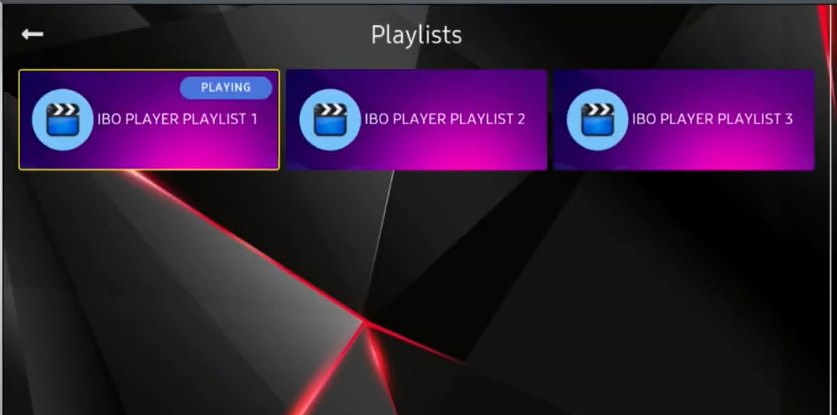
Setting up an IBO Player playlist is usually straightforward once you know which device details and playlist format to use. This guide explains the basic setup process, common troubleshooting steps, and what to check before paying for an app activation.
What you need before setup
- A compatible device with the IBO Player app installed.
- The device ID or MAC address and device key shown inside the app, if the portal requests them.
- A valid M3U/M3U8 playlist URL or other supported details from a provider you are legally entitled to use.
- A stable internet connection.
Important: IBO Player is a media player, not a TV channel or playlist provider. Activating the app does not automatically include channels, movies, or a streaming subscription. Read the official IBO Player support information and only add content you have permission to access.
How to set up an IBO Player playlist
- Install the app. Find IBO Player in the official app store for your TV or device where available. Check the app name and publisher before installing.
- Open the app and record the device details. The app may display a MAC address/device ID and a device key. Enter these details carefully if the playlist-management portal asks for them.
- Open the playlist management portal. Use the portal linked from the app’s official support instructions. Confirm that the website is legitimate before entering device information.
- Add your playlist. Choose the playlist option, enter a clear name, and paste the valid M3U/M3U8 URL supplied by your authorized provider. Avoid sharing playlist URLs publicly because they can contain private account details.
- Save and refresh the app. Save the playlist in the portal, then restart the app or refresh its playlist list. Menu labels may differ by device and app version.
- Test playback. If the playlist appears but does not play, confirm that the URL is current, your subscription or access is active, and your device is online.
Common IBO Player playlist problems
The playlist does not appear
Double-check the device ID and device key, confirm that you saved the correct playlist to the matching device, and reopen the app. If the portal reports an error, follow its instructions rather than repeatedly submitting different device details.
The app stays on loading
Restart the app and device, test your internet connection, and check whether the playlist URL is still valid. If the playlist also fails in a supported player or on another network, contact the playlist provider. If the app itself fails to open, consult official app support.
Activation works but there are no channels
This is expected if you have not added a playlist. App activation unlocks the app according to its license terms; it does not supply TV channels or media content. Obtain content separately from a lawful source.
Before paying for app activation
- Check compatibility with your exact TV model, operating system, and region.
- Confirm whether the offer is a time-limited license or lifetime license.
- Read the provider’s refund and support terms before checkout.
- Never send passwords, payment-card details, or a private playlist URL in a public comment.
You can review our IBO Player Playlist setup and activation information for more site-specific guidance, or visit the IBO PLAYER listing on the Apple App Store to check app details for Apple devices.
Frequently asked questions
Does IBO Player include a playlist?
No. It is a media player. You need to add a playlist or media source that you are authorized to use.
Which playlist format should I use?
Follow the format supported by your app version and the instructions from your provider. M3U and M3U8 are common playlist formats, but compatibility can vary.
Who should I contact if a playlist fails?
Contact the playlist provider for an invalid or expired source. Contact the app’s official support if the app itself will not open or activation has a technical issue.
This guide is independent and is not an official IBO Player website. Product names belong to their respective owners. Always verify current app features and use legally authorized media sources.
Hi, this is a comment.
To get started with moderating, editing, and deleting comments, please visit the Comments screen in the dashboard.
Commenter avatars come from Gravatar.